Script to Shot List: AI Script Breakdown in One Click
Feed a short script to the Script Breakdown node and get a 12-column shot table with framing, transitions, camera moves and ready-to-use prompts.
Paste a script into a canvas text node and the Script Breakdown button returns a 12-column shot table — framing, transitions and ready-to-use generation prompts included. In our test the five-shot structure held up as-is; the asset list and AI-written dialogue still need a human pass. The breakdown itself consumed no credits — try it on your own script for free
Three pages of script, and the enthusiasm runs out halfway through scene one. By scene three the framing is whatever, transitions are all "and then", and when it's finally time to generate footage you realize the shot purposes were never thought through — and not a single prompt has been written.
The value of automated breakdown isn't "fully automatic" — it's getting a draft you can argue with, fast. Let AI spread the script into a shot table first, and spend your judgment on "where did it break this down wrong?" That's much faster than starting from zero.
There's a Script Breakdown button on the canvas text node that does exactly this: paste in a script, and it produces a complete shot table with framing, duration, transition suggestions and generation prompts. We previously wrote about how to break a script into shots by hand; this time we hand the same story to the button and grade its work against that manual standard.
The same rainy-night wallet return
The test script is only about 180 characters — the story longtime readers already know:
Rainy night, half an hour before closing. Customer Xiao Ai counts coins for a last latte at the window seat; a phone call sends her rushing out, wallet left on the table. Barista A-Jie spots it while clearing cups, grabs it and chases her out, catches her at the intersection in the rain, and the handoff ends under a convenience-store awning with the two of them smiling.
The operation takes two steps: create a text node on the canvas and paste the script, select the node and click Script Breakdown in the toolbar. A new breakdown node appears, spends a few dozen seconds on scene splitting, and the result comes out — in our test, the breakdown itself consumed no credits.
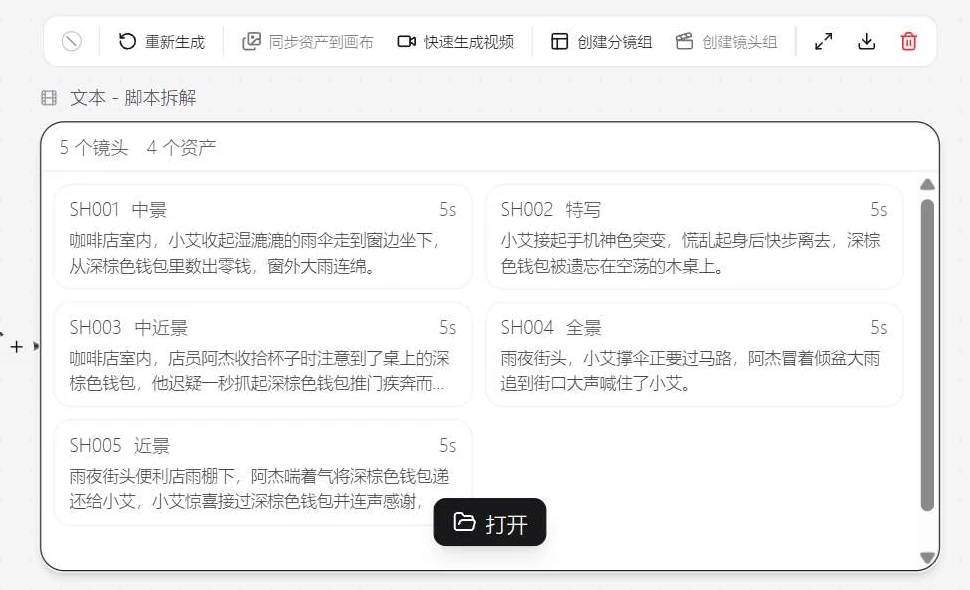
180 characters in, a 12-column shot table out
The node card gives the overview first: 5 shots, 4 assets. Click Open for the full shot table — every shot carries 12 columns: transition suggestion, shot number, duration, action description, characters, props, framing, lighting mood, dialogue/VO, sound, camera move, and the final column — an English generation prompt you can use as-is.
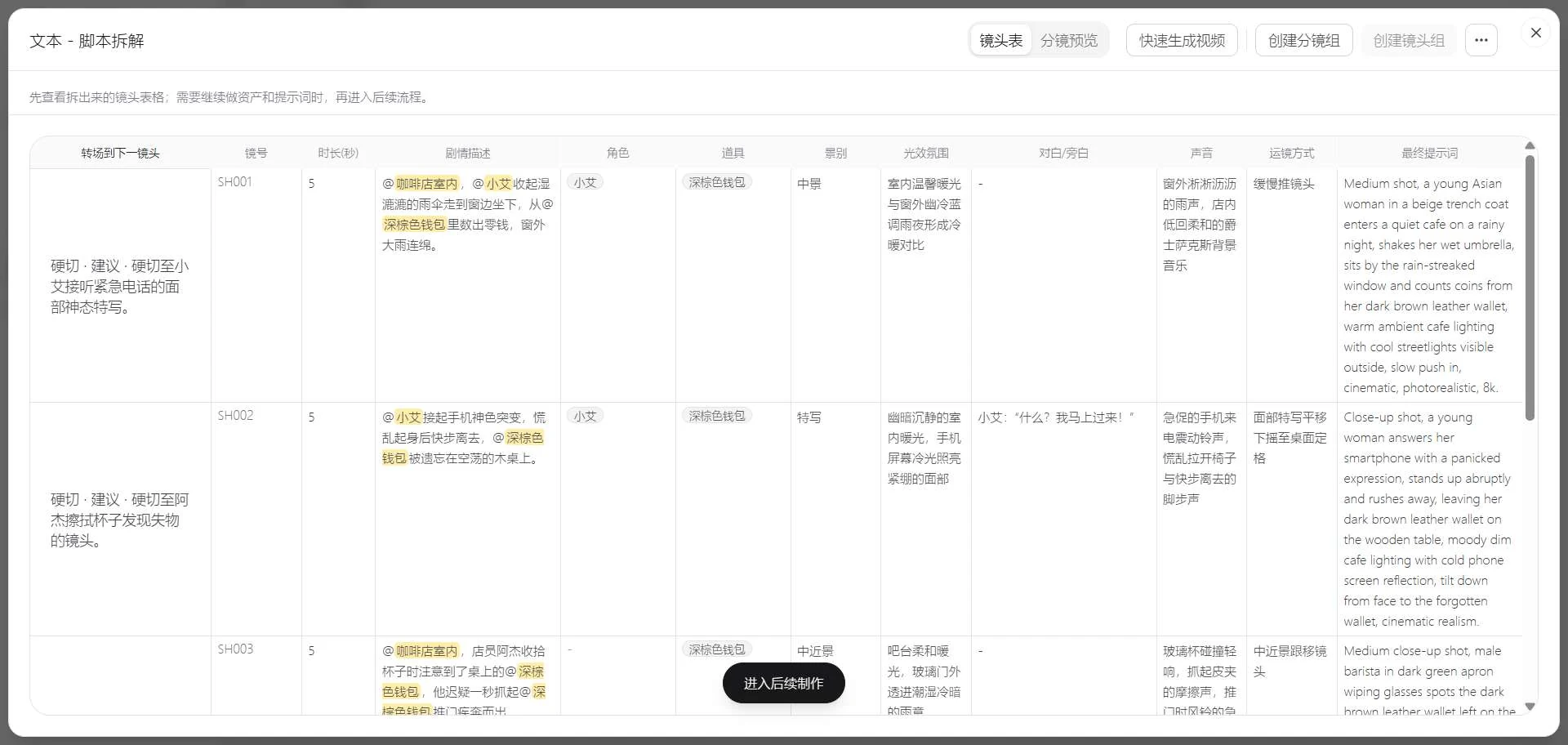
What it gets right happens to be the three most time-consuming parts of manual breakdown:
- The framing rhythm is designed, not random: medium shot to establish the space → close-up on the phone-call turn → medium close-up for the discovery → wide for the chase → close shot to land the warm ending. Exactly the "every shot needs its own job" principle from our manual breakdown article.
- Transitions aren't blank cells: each row opens with a suggestion — hard cuts for the first four shots, each stating what to cut to ("hard cut to a close-up of Xiao Ai's face as she takes the urgent call"), and a dissolve to close the story.
- The mood columns are specific: lighting ("warm interior against the cold blue rainy night outside the window"), sound ("rain pattering on the awning"), camera moves ("slow arcing push-in") — descriptions, not boilerplate.
Characters and props in the descriptions are tagged as assets (@Xiao Ai, @dark brown wallet, @cafe interior) — the handle for keeping them consistent across shots later.
Can the prompts be used as-is? We tried SH004
The last column of the table is meant to be copied straight into generation. We fed the SH004 prompt (the wide shot of the rain chase) to text-to-image unchanged:
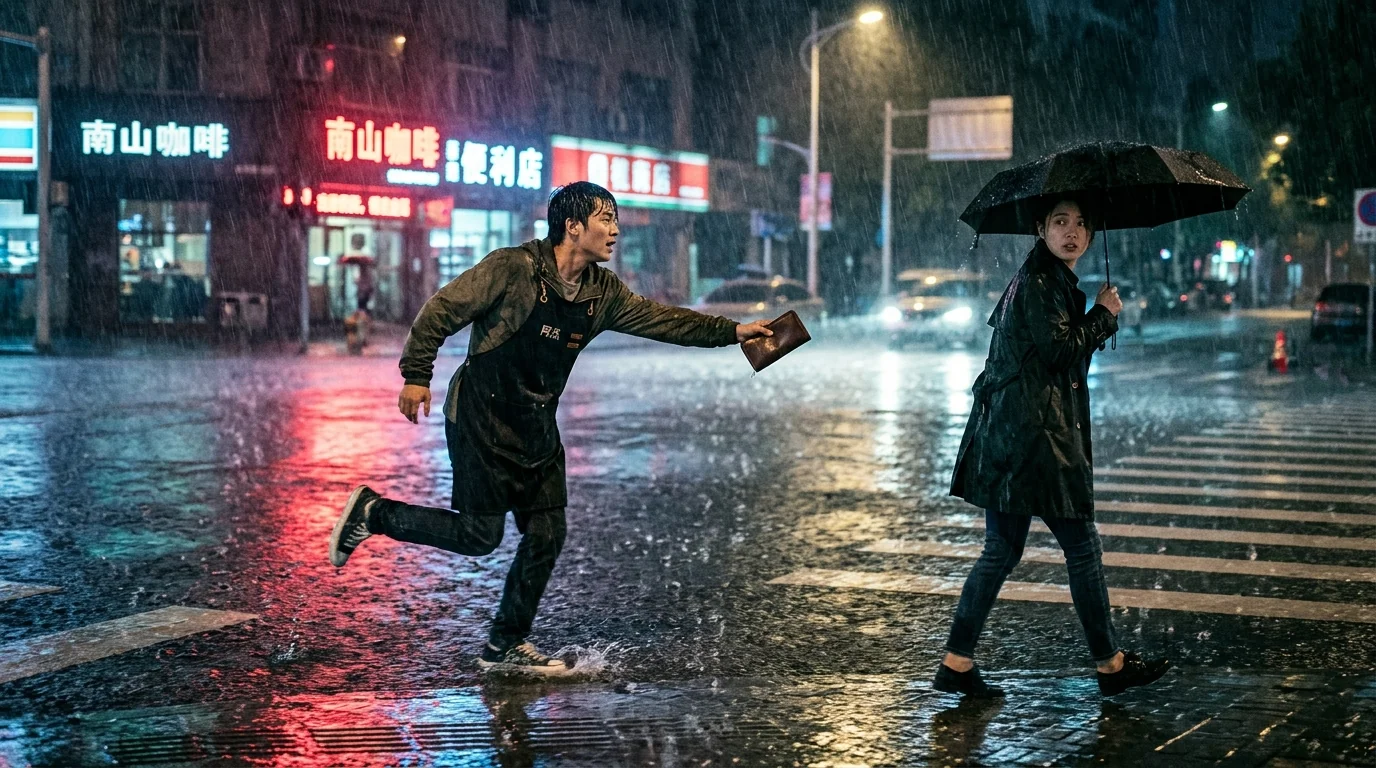
Rainy intersection, neon on wet asphalt, the running aproned barista, the woman turning back under her umbrella — every storyboard element present, composed as the lateral chase the prompt asked for. More than enough for single-frame previz.
Want to see your own script broken down like this? Paste it into a text node on the canvas — in our test the breakdown itself consumed no credits. Try Script Breakdown for free
But keep your own eyes on these three things
Fast breakdown doesn't mean no review. The three issues from our test are exactly what a human pass should catch:
- The asset list missed A-Jie. Four assets cover Xiao Ai, the wallet and the locations — but not the male lead who does the chasing. His name drifts in and out of the character column. Without adding him as a character asset, his look will likely change from shot to shot during generation.
- The AI wrote its own dialogue. The original script has no lines; the table adds "What? I'll be right there!" and a full exchange under the awning. Reasonable additions — but they're creative decisions you should confirm, not silently accept.
- Character styling was improvised. The prompts dressed Xiao Ai in a beige trench coat and put A-Jie in a dark green apron — the script never said so. For specific looks, write them into the script, or sweep the prompts afterwards.
After the fixes, continue down the node's pipeline: confirm shots → prepare assets → compose prompts. The panel also offers quick video generation, storyboard groups and shot groups for pushing straight from table to footage.
Four checks once the table lands
- Shot purpose: can you state in one sentence what the audience should understand from each shot? Merge or cut the ones you can't;
- Characters and assets: is everyone who appears actually in the asset list? Are costumes and prop states consistent across shots;
- Transition logic: do the suggested transitions between neighbors hold up? Did emotional turns get a reaction shot;
- Dialogue ownership: confirm every AI-written line and voice-over — keep or delete, line by line.
The breakdown node does about eighty percent of the first two for you; for the last two, run the multi-shot continuity checklist item by item.
Three common questions
How long a script works best?
Our 180-character short script broke into 5 shots — just the right granularity. For longer scripts, split by scene first and break one scene at a time; the longer the table, the worse human review gets.
Can the table be edited?
Yes. The confirm-shots step lets you adjust every shot before moving on to assets and prompts; if the whole pass misses, regenerate. Before confirmation the table is only a draft and doesn't consume generation resources.
Does it replace manual breakdown?
No — it changes the division of labor: AI spreads the script into a structured table, you make the creative calls — where to linger, what to skip, what the characters look like. To train the judgment, read the manual breakdown article first; to save the labor, start with this button.
Plug it into your pipeline
Once the shot table is out: for how characters move through the scene, see character paths in Director Workbench; for choosing camera setups, see dialogue camera angles; for joining shots, see the continuity checklist. The first step from script to film just got fast too.
Turn your script into a shot table now
Sign up free and run it in the browser — a new account comes with free credits, and the breakdown step itself doesn't spend any.
Put this into practice
Open your Musein workspace and try the ideas from this article in your own project.